
Adding Products to Collections
Overview
Once you have a collection, you can easily add products from your collections directly from your Brand's Products page. The products you add to your collections will be included wherever you add your collection in your creator marketing programs.
What You'll Need
A configured Brand. See Creating your Brand to learn more.
At least one product added to your Brand. See Adding Products to learn more.
An existing collection in your Brand. See Creating a Collection to learn more.
How to Do It
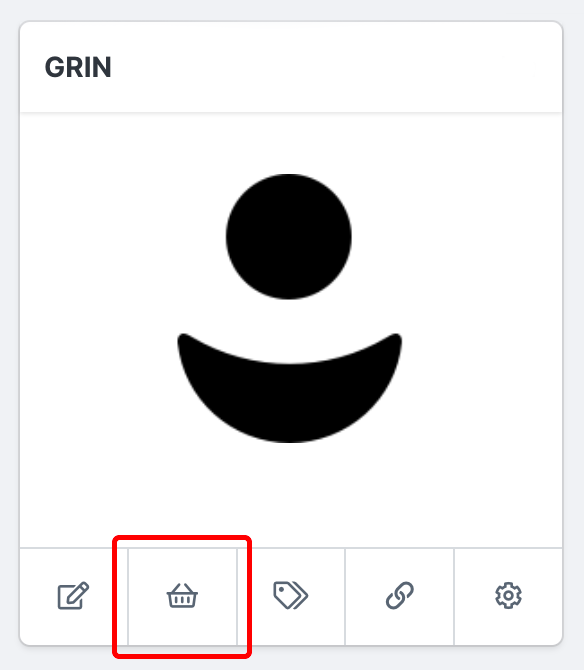
1. Navigate to Brands > Products.
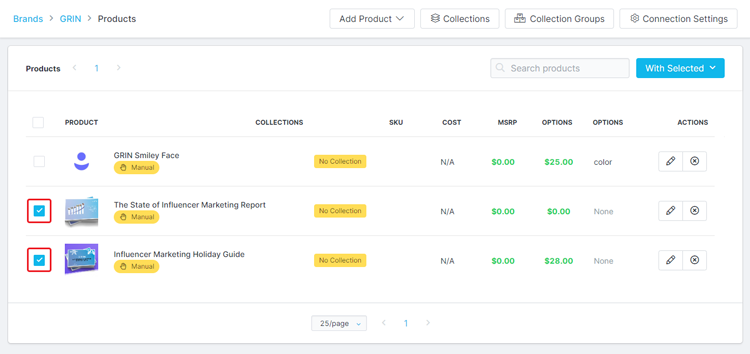
2. Click the checkbox next to the products you want to add to a collection.
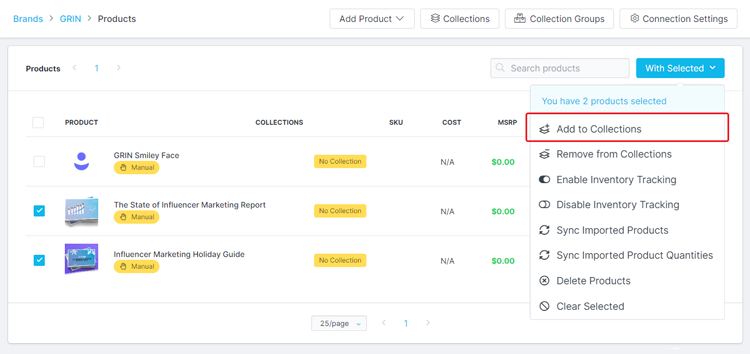
3. Click With Selected > Add to Collections.
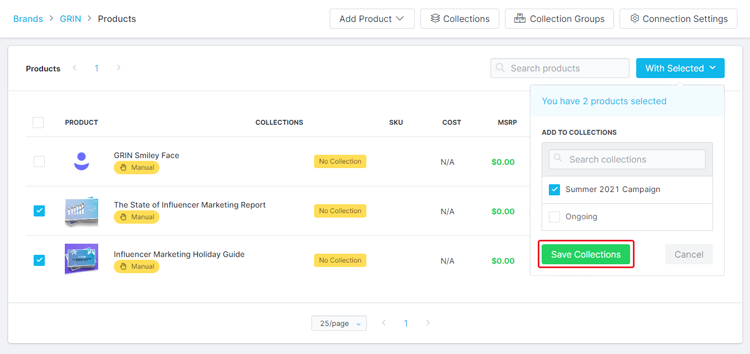
4. Select the collection(s) you want to add your products to, then click Save Collections.
Conclusion
Your products have now been added to your collections. Now, whenever you select that collection in GRIN, those products will always appear as part of it.