
Creating a Team
Overview
You can create a Team in GRIN that can be assigned to your Activations. Users added to each team will only have access to the Activations their team is assigned to. Teams also facilitate collaboration and make it easier to manage user access and permissions across different projects.
What You'll Need
Admin permissions
How to Do It
Navigate to Account > Settings > Teams. This will open the Existing Teams page. If you are unable to find the Teams section, make sure the Teams feature is enabled. Activation may be required before accessing this feature.
2. Select Create. This will open the Create New Team page.
3. Enter a Team Name and select Create Team.
Your new team should now appear in your Current Teams list. By default, the user who created the team will be added to the new team. If additional user seats are required for a growing team, contact GRIN support or your Account Manager via the help section for assistance.
Adding Users to a Team
You can add users to your new team with the following: Additionally, you can invite users to create their login credentials during this process.
1. Select Users next to your team.
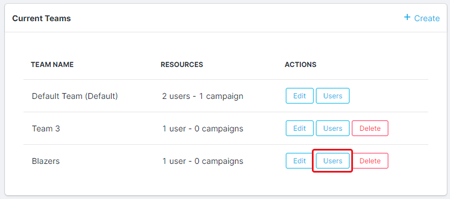
2. Select the checkbox next to each team member you want to add.
Conclusion
Your team will automatically be updated with the new team members you selected!