
Creating an Email Template
Overview
Templates are pre-written emails you can save in GRIN and use later to quickly compose emails. Templates can also be used in Email Sequences, which are scheduled email chains you can send out based on the recipient creator's activity. You can learn more about sequences here.
GRIN comes with some templates in your account by default for common creator outreach emails and follow-ups. If you find yourself composing similar emails to creators often, you can also create a new template that you can reuse instead to save time. You can learn more about creating templates in this article.
What You'll Need
A connected email on your Integrations page. To learn more, you can visit Integrating Your Email.
How to Do It
1. Navigate to Messages > Templates and click Create.
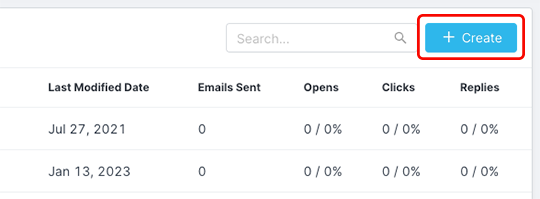
Click Create to get started.
2. In the template's settings, fill out the following fields:
Template Name: The name that will appear for the template in GRIN.
Subject: The subject line for this template. You can use variables in this subject line as well. See Using Variables for more information.
Body: The main text of your template. We recommend using variables to make your template bodies more dynamic with the Insert tool. See Using Variables for more information.
3. Click Save.
Using Variables
Variables are snippets that update automatically in the email based on the creator you're sending the email to or the account user you're sending from. For example, the First Name variable will automatically update to the recipient's first name when the email is sent out.
You can use variables by clicking the Insert tool in the text body editor and selecting a variable from the list that appears. You can also use variables in the template's subject line.
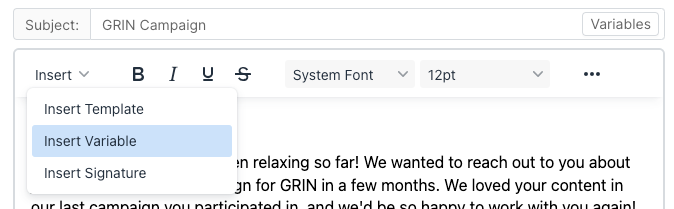
Select Insert Variable to insert them in your template.
Conclusion
Your template is now ready to use!