Creating Custom Fields for Your Campaign
Overview
Note: If you joined GRIN on January 23, 2023, or later, Campaigns will not be available for your account and have been replaced by Activations. You can use Activations to manage and organize your creator marketing programs.
For more information, check out our help articles.
You can collect additional information from your influencers by adding custom fields. They allow you to get additional information from your creator that can be used to help you filter or add to a campaign.
How to Do It
1. Click Contacts and select Creators from the drop-down menu.
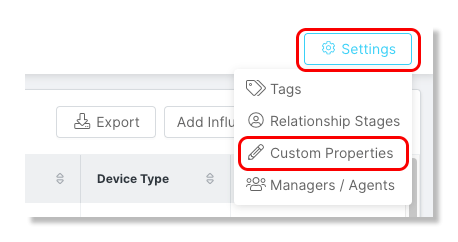
2. Click Settings and select Custom Properties.
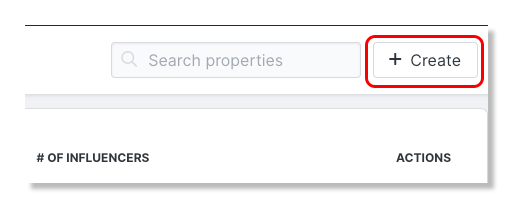
3. Click Create in the upper right-hand corner.
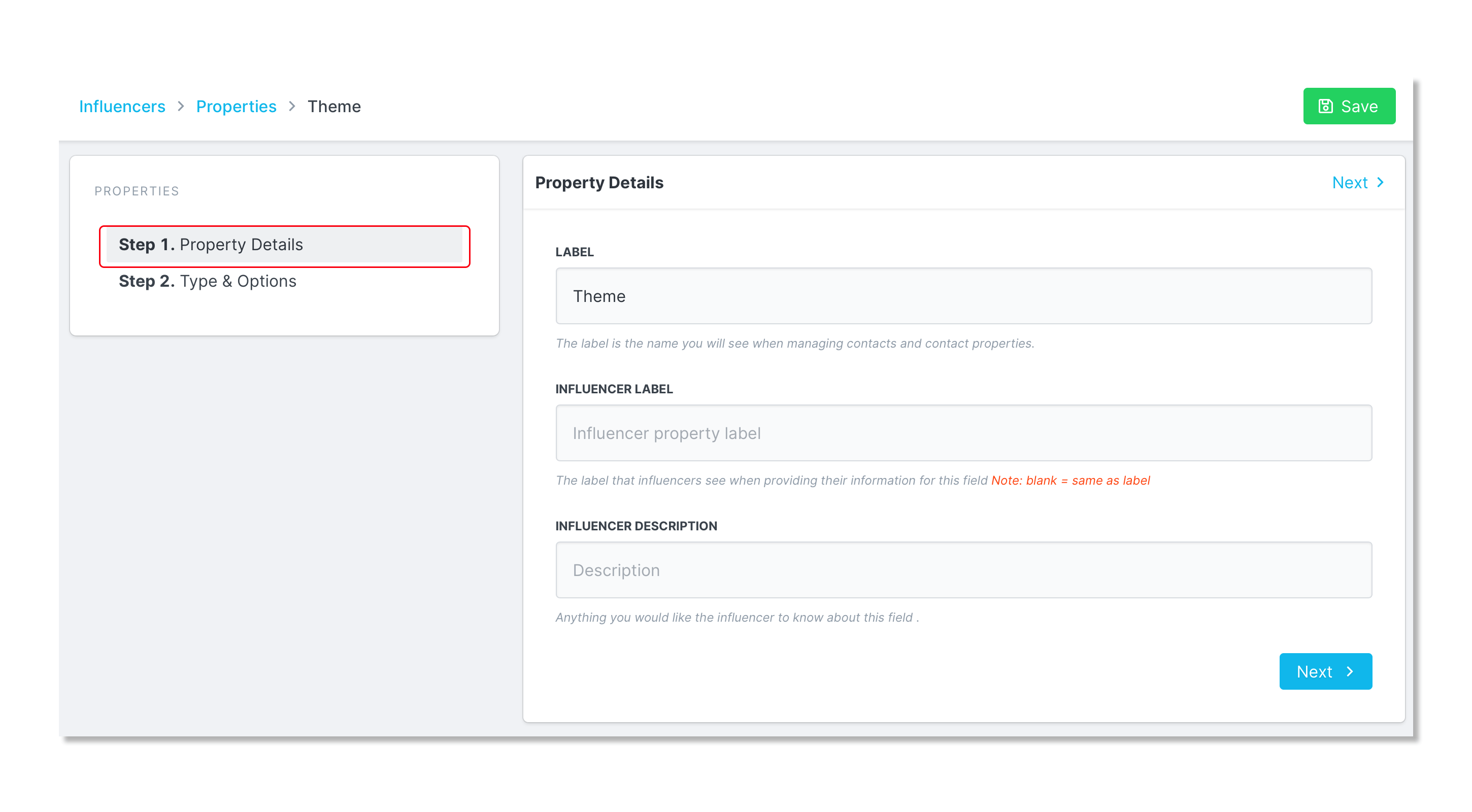
4. Under Step 1: Property Details, enter Label, Creator Label, and Creator Description.
5. Under Step 2: Type & Options, select Field Type from the drop-down menu. The field type will determine how you will interact with the property values.
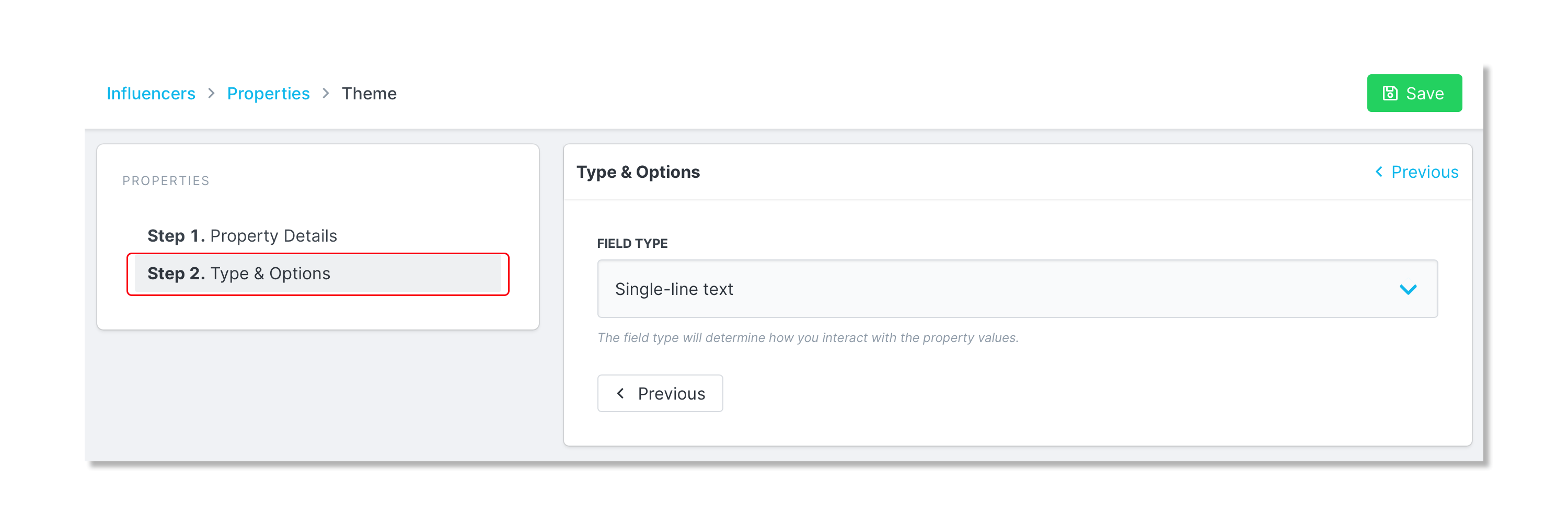
6. Click Save.
How to Add Custom Fields to a Campaign
1. Click Program and select Campaigns from the drop-down menu.
2. Click the Edit Campaign Details icon.
3. Click on Step 8: Other Information.
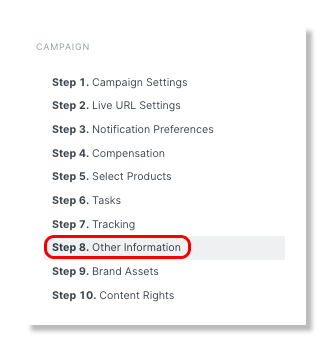
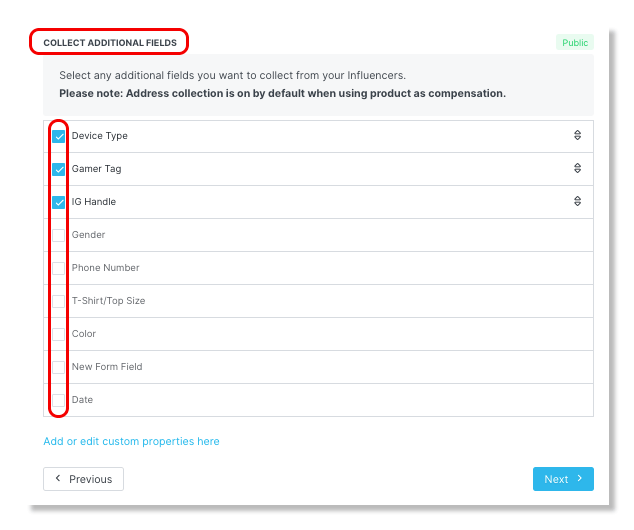
4. Scroll down to the Collect Additional Fields section and check the boxes for the additional fields you would like to include.