
Enabling Two-Factor Authentication
You can enable Two-Factor Authentication (TFA) on your account to add an extra layer of security when you log in to GRIN. Currently, you can enable two-factor authentication by configuring a one-time password.
What You'll Need
A phone with an authenticator app installed. We recommend Google Authenticator, but any authenticator app will do.
How to Do It
1. Navigate to Account > Settings > Security.
2. In the Two-Factor Authentication section, click Enable next to One-Time Password. This will open the Enable two-factor authentication pop-up.
3. If you haven’t already, install your preferred authenticator app on your phone.
4. Once you’ve installed and set up an authenticator app, select Next in the modal in GRIN.
5. Scan the QR code that appears with your authenticator app. This will generate a verification code.
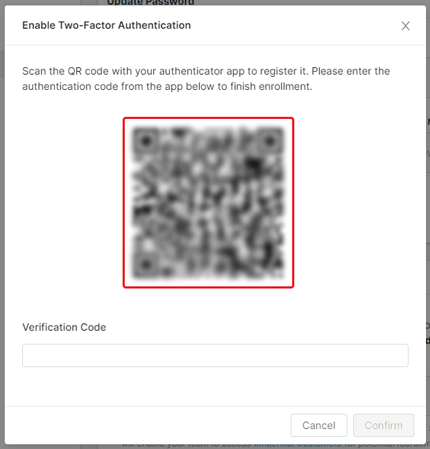
6. Enter the verification code from your authenticator app into the Verification Code field in GRIN.
7. Click Confirm.
8. If you're redirected to the GRIN login screen, log in to your account again. This extra layer of authentication only occurs if you've been logged in to GRIN for more than 10 minutes. Otherwise, your setup is complete and you can skip Steps 8 and 9.
9. Click Confirm again.
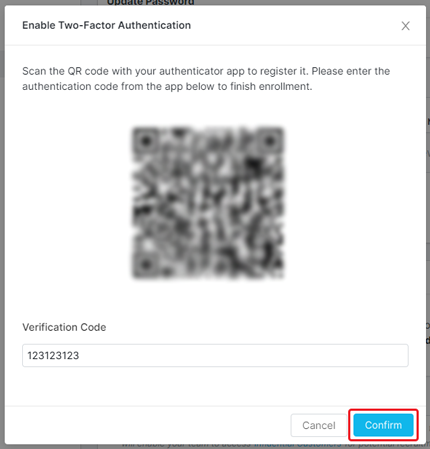
Your two-factor authentication with a one-time password should now be configured. The next time you log in, you’ll be prompted to scan a QR code and enter a verification code from your authenticator app in addition to providing your username and password.
You can disable two-factor authentication at any time by returning to your Security settings and clicking Disable next to your authentication method.