
Integrating with WooCommerce
You can integrate your WooCommerce store so you can create, fulfill, and track your creators’ orders from within GRIN. This is ideal for managing large numbers of orders and scaling up your creator program!
Note: This is a premium feature in GRIN, meaning it is only available with a paid subscription to GRIN. By default, the integration will have a Request button in GRIN, which notifies our support team that you’d like the integration enabled. After you click to request the integration, a representative from GRIN will reach out to you.
What You'll Need
A WooCommerce account.
Your Brand you want to integrate WooCommerce with already set up in GRIN. Click here for more information on setting up a Brand.
How to Do It
There are a few ways you can integrate with WooCommerce across GRIN: from the App Marketplace, from within your Brand, and from your Integrations Settings. Each method has similar steps.
Integrating from the App Marketplace
1. Navigate to Account > App Marketplace. This will open the App Marketplace page.
2. Find the WooCommerce integration by either:
Searching "WooCommerce" in the search bar.

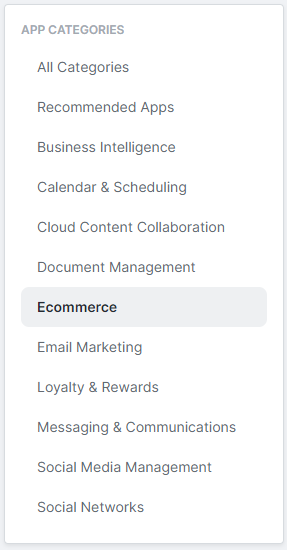
Navigating to the Ecommerce App Category.
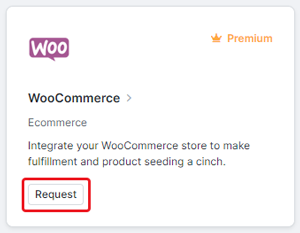
3. Click the WooCommerce integration’s Request button. This will open the Request access to WooCommerce pop-up.
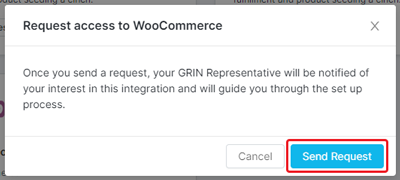
4. Click Send Request.
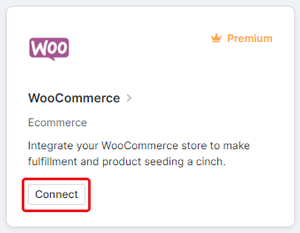
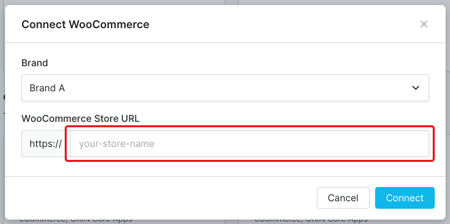
5. Once WooCommerce is enabled for your account, click the WooCommerce integration’s Connect button. This will open the Connect WooCommerce modal.
6. Select the Brand you want to connect WooCommerce to. You cannot integrate WooCommerce with a store that already has a store connected to it.
Note: If you do not have any Brands created yet, you’ll be prompted to create one before connecting with WooCommerce.
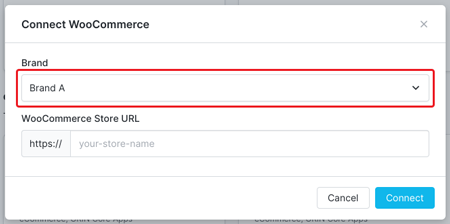
7. Enter your WooCommerce Store URL.
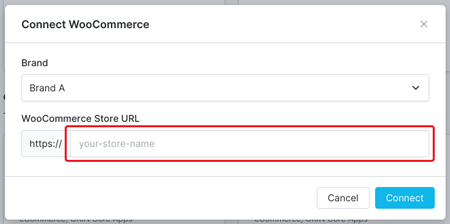
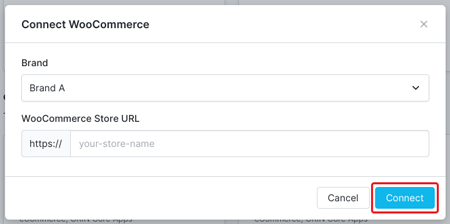
8. Click Connect. If you see a pop-up to log in to your WooCommerce account, complete the login process there as well.
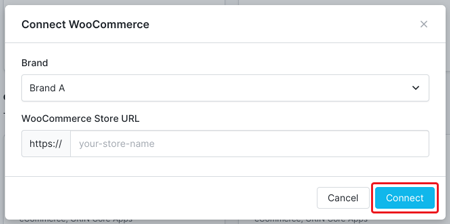
Your WooCommerce account should now be connected to your Brand and account.
Integrating From Your Brand
You can also integrate with WooCommerce directly from the Brand you want to connect it to. To do so:
1. Navigate to your Brands and click the Edit Brands icon.
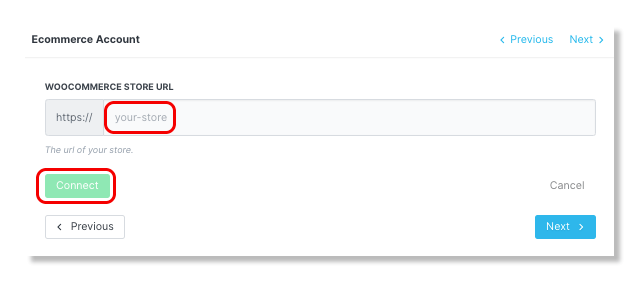
2. Under Step 3: Ecommerce Account, click Connect under the WooCommerce logo.
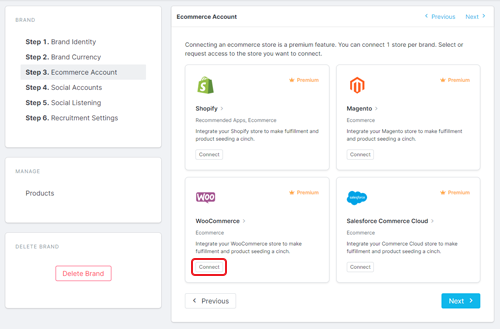
3. Enter your WooCommerce Store URL and click Connect to be redirected to the login page on WooCommerce.
Note: Make sure to adjust your pop-up blocker settings, as you will be redirected to WooCommerce in order to complete your WooCommerce store connection.
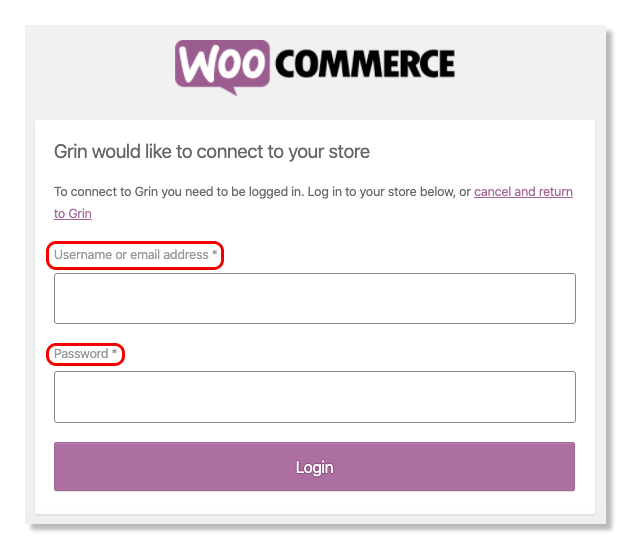
4. Enter your Username or Email Address, and Password, and click Login.
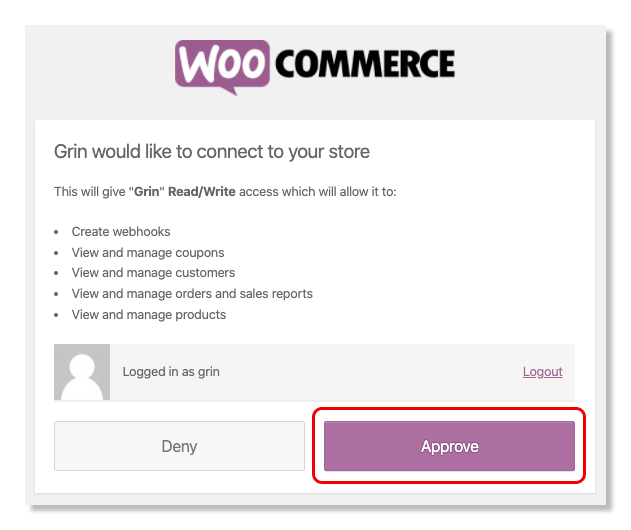
5. Click on Approve to connect your store.
Integrating From Your Integrations Settings
Once you’ve added WooCommerce as an integration to your account, you can also connect to it from your settings. To do so:
1. Navigate to Account > Account Settings > Integrations. This will open your Integrations settings page with a list of your integrations.
2. Click Connect on your WooCommerce integration. This will open the Connect WooCommerce modal.

3. Select the Brand you want to connect WooCommerce to. You cannot integrate WooCommerce with a store that already has a store connected to it. If you do not have any Brands created yet, you’ll be prompted to create one before connecting with WooCommerce.
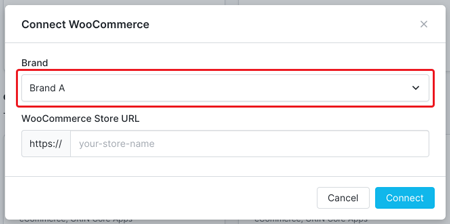
4. Enter your WooCommerce Store URL.
5. Click Connect. If you see a pop-up to log in to your WooCommerce account, complete the login process there as well.
Your WooCommerce account should now be connected to your Brand and account.