
Managing Email Templates
You can manage and organize your templates from your Templates page. It's particularly important to regularly refresh, update, and delete any unused templates so you can stay within your GRIN account's template limit. You can learn how to do so in this article.
What You'll Need
An existing email template. To learn more, you can visit Creating an Email Template.
How to Do It
You can access your templates from Messages > Templates. From here, you can manage your Active templates and your Archived templates.
Active Templates
Active templates are for templates you're currently using and will be available wherever you can insert templates.
Hover over a template to display its row actions: Edit, Archive, Duplicate, and Delete.

Hover over a template to display row actions.
You can also click the checkbox next to multiple templates to perform bulk actions: Archive or Delete.
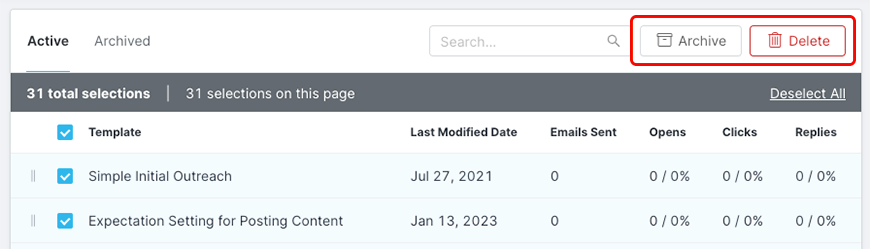
Click one or more checkboxes to display bulk actions.
Archived Templates
Archived templates are templates that you are not currently using, but may want to reenable later. These templates won't appear while inserting or sending them in GRIN, and you also can't edit them.
Hover over a template to display its row actions: Restore or Delete.

Hover over a template to display row actions.
You can also select the checkbox next to multiple templates to perform bulk actions: Restore or Delete.
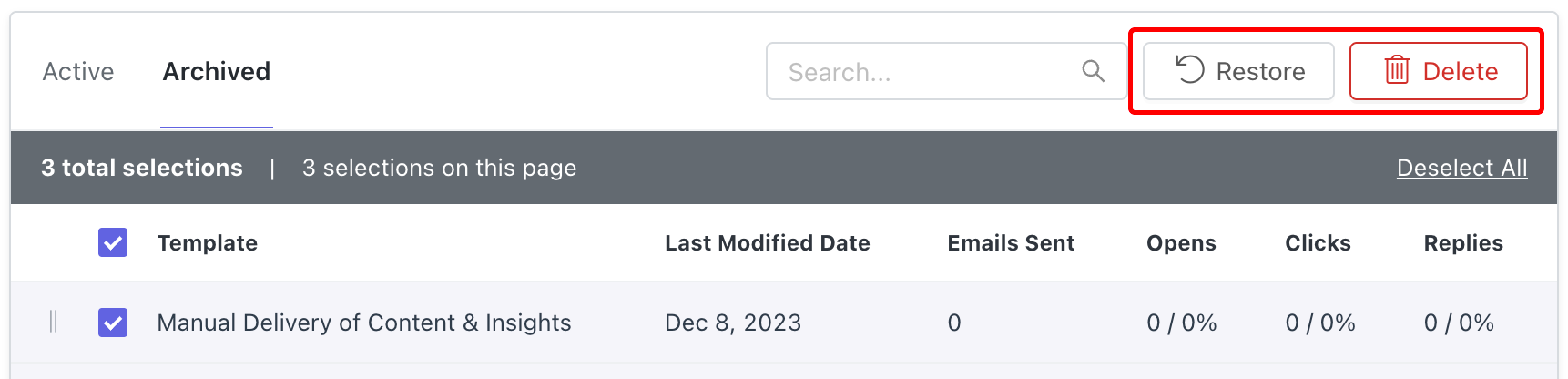
Click one or more checkboxes to display bulk actions.