
Managing the Reporting Dashboard
The Reporting Dashboard provides additional visibility into the performance of your programs and provides a high-level overview of key performance metrics. GRIN visualizes these metrics in different metrics that you can enable, filter, and organize to your needs.
What You'll Need
Depending on the data you are looking to view, you need:
A connected Instagram account (if viewing the Brand Growth widget).
At least one content piece delivered by a creator (if viewing the Content or Content Engagement widget).
At least one Creator added to the account (if viewing the Creators widget).
At least one Prospect added to the account (if viewing the Prospects widget).
At least one recorded conversion from a creator (if viewing the Conversions widget).
At least one creator payment added, recorded, or processed (if viewing the Payments widget).
At least one fulfillment order created in a Campaign (if viewing the Campaigns Product Fulfillment & Cost widget).
At least one fulfillment order created in an Activation (if viewing the Activations Product Fulfillment & Cost widget).
Note: If there isn't data for a source, the data source won't show on the drop-down selection at the top. For example, if you have no recorded conversions, Conversions won't show on the list of data sources.
How to Do It
You can access your dashboard from Reporting > Dashboard. There are a few ways you can customize your dashboard. You can learn about each method in this article. This includes:
Enabling Widgets
Filtering Data
Changing Chart Views
Enabling Widgets
You can add or remove widgets at any time so you only see the ones you need. To do so:
1. Click the Settings button.
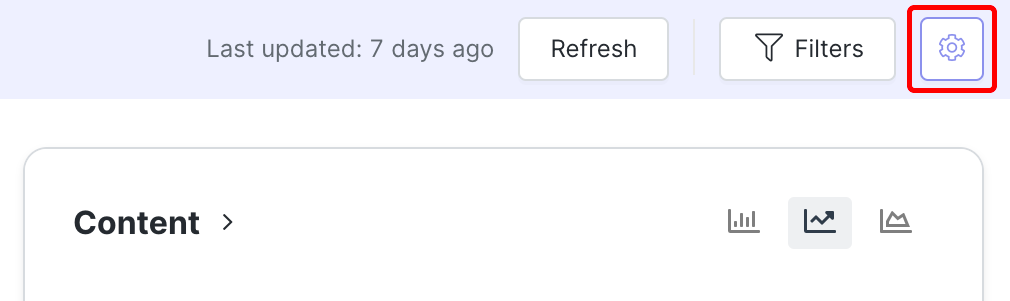
Select Settings to open the Dashboard Settings modal.
2. Toggle each widget as needed. You can also select a different currency if you use multiple currencies in your account.
3. Click Save.
Filtering Data
You can filter your dashboard to only display the data you want to see by doing the following:
1. Click the Filters button.
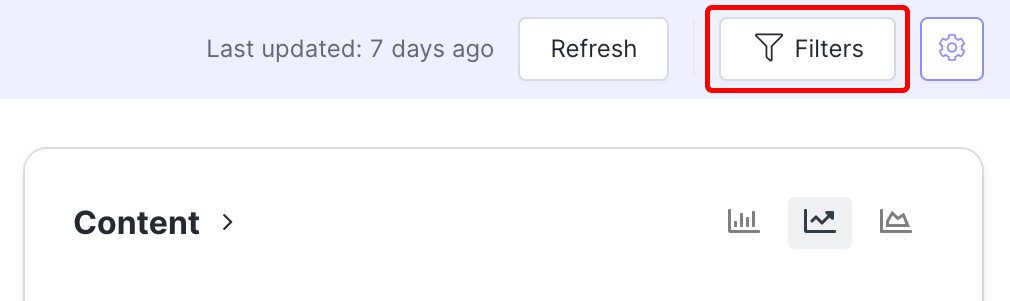
Select Filters to customize your data.
2. Choose the filters you want to use.
3. Click Apply.
Your filters will be applied to your dashboard. You can return to your Filters to update them or select Clear All to remove all of them from your reports.
Changing Chart Views
You can change the chart view on certain widgets. This lets you further customize what data you want to see on your dashboard. There are two ways to do it:
Changing the chart type: Select a chart where available to switch the kind of chart you're looking at.
Filtering data: Select an option in the legend to add or remove it from the data that's displayed in the chart.
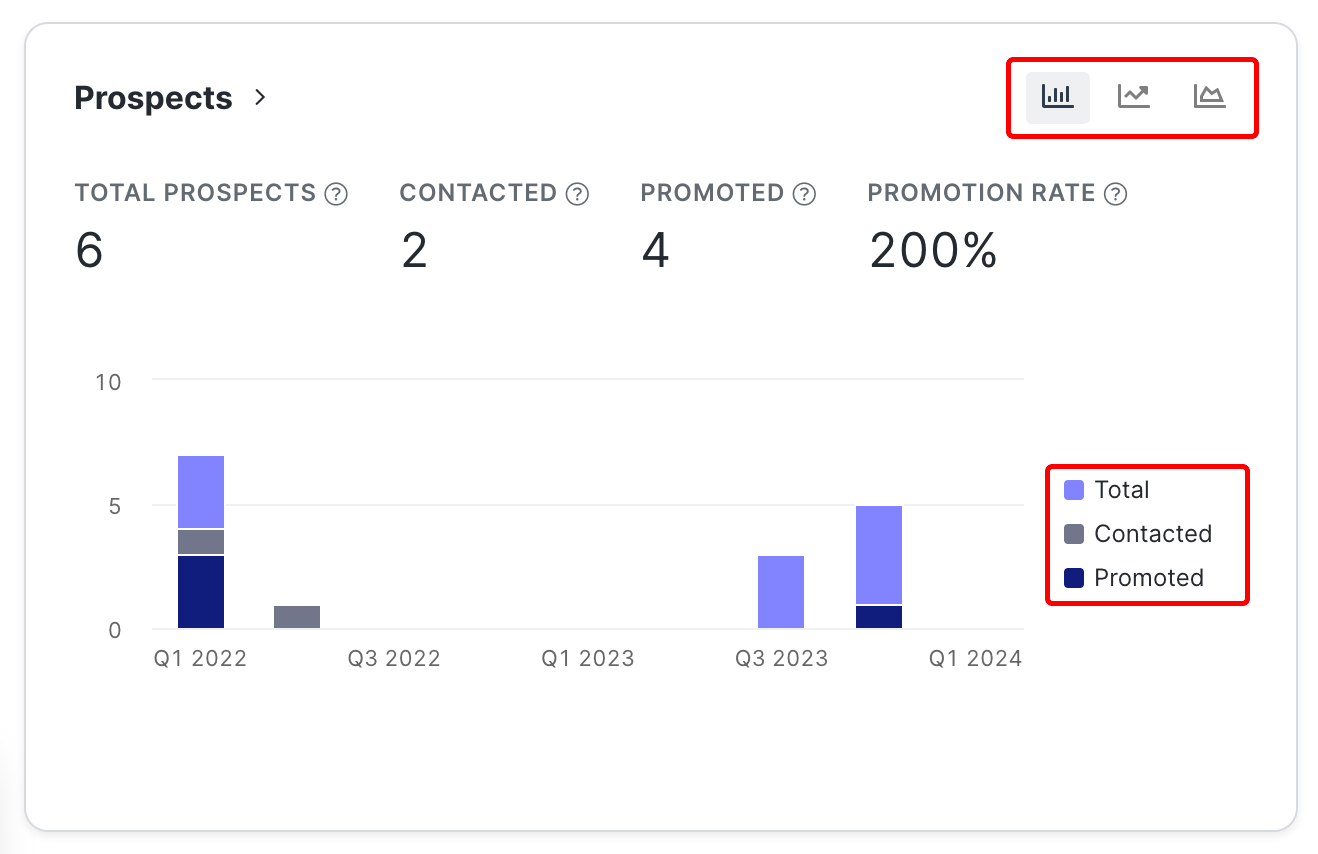
Charts that can be changed will appear with the different chart types and a legend.