
Managing Your Login Credentials
Who this article is for: brand team members who sign in at app.grin.co.
Not for creators / Live Site: If you are a creator, or you are helping a creator who cannot reset a password / is not receiving a password reset email from the GRIN login page, stop here. Creators do not use Forgot password on app.grin.co. They open their Live Site link and verify by email. Use Verifying Your Account instead. Keywords this article does not cover: creator login, Live Site password, creator forgot password, password reset email not received for a creator.
You can update your password at any time from your account settings or by using the password reset flow on the login screen.
At this time, login email addresses cannot be updated directly in the product. If you need to change the email associated with your account, please contact GRIN Support (support@grin.co) or reach out to your Account Manager for assistance.
Use this guide to learn how to update or reset your password.
How to Do It
You can learn how to update your password in the sections below.
Changing Your Password
1. Navigate to Account > Settings > Security.
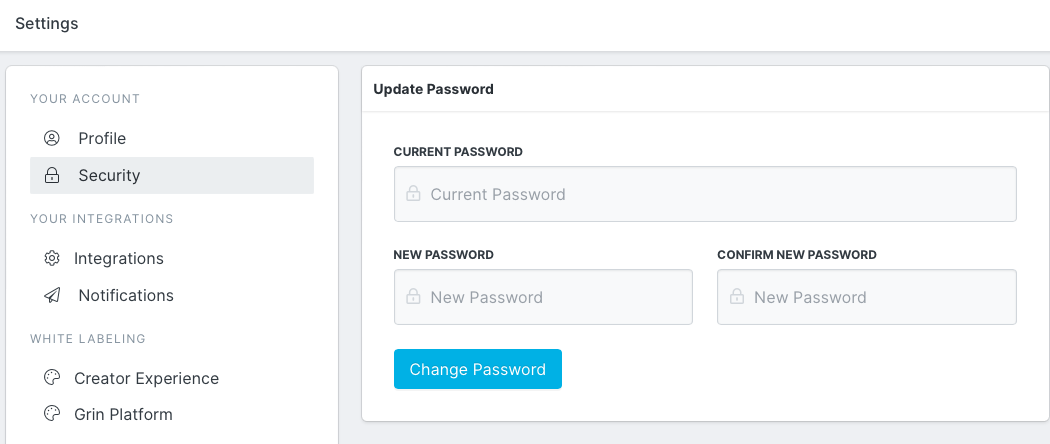
2. Enter your current password, then provide your new password.
3. Click Change Password to update your password.
Resetting Your Password
1. On the GRIN Login page, enter your login email address and click Continue.
2. Click Forgot password? to start the reset process.
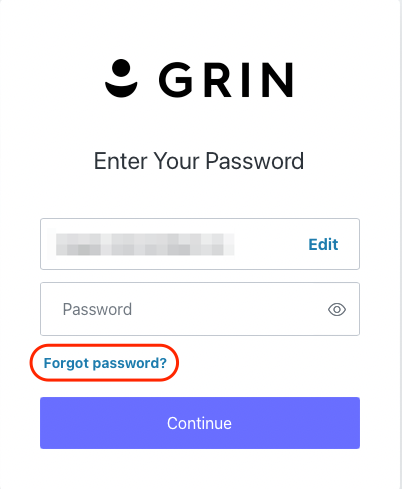
3. Confirm your email address and click Continue.
4. Check your inbox for an email from GRIN.
5. Open the unique URL in the email to reset your password.