
Using the GRIN Creator Discovery Web Extension
If you find a creator you think would be a great fit for your creator marketing program, you can add them as a contact in GRIN with the GRIN Creator Discovery Web Extension. With our extension, you can visit any creator’s profile on a supported social network to check their stats, preview their posts, and import them into GRIN with custom properties.
Currently, the GRIN web extension supports the following social networks:
Instagram
TikTok
YouTube
Pinterest
What You'll Need
A supported web browser. GRIN's extension currently supports:
Depending on any properties you want to assign to the creator when you import them, you may need the following configured in GRIN before using the extension:
Custom Tags. For more information on tags, see our help article How to Manage Tags.
An existing Activation. For more information on creating an Activation, see our help article Creating an Activation.
How to Do It
1. Log in to GRIN. This makes sure you can import creators and their data into your GRIN account. If you're not logged in, you can only view a creator's stats.
2. If you haven't installed the GRIN Creator Discovery Web Extension yet, navigate to Recruitment > Web Extension. This will open GRIN's web extension in your browser's extension store.
3. Navigate to a creator's social network profile.
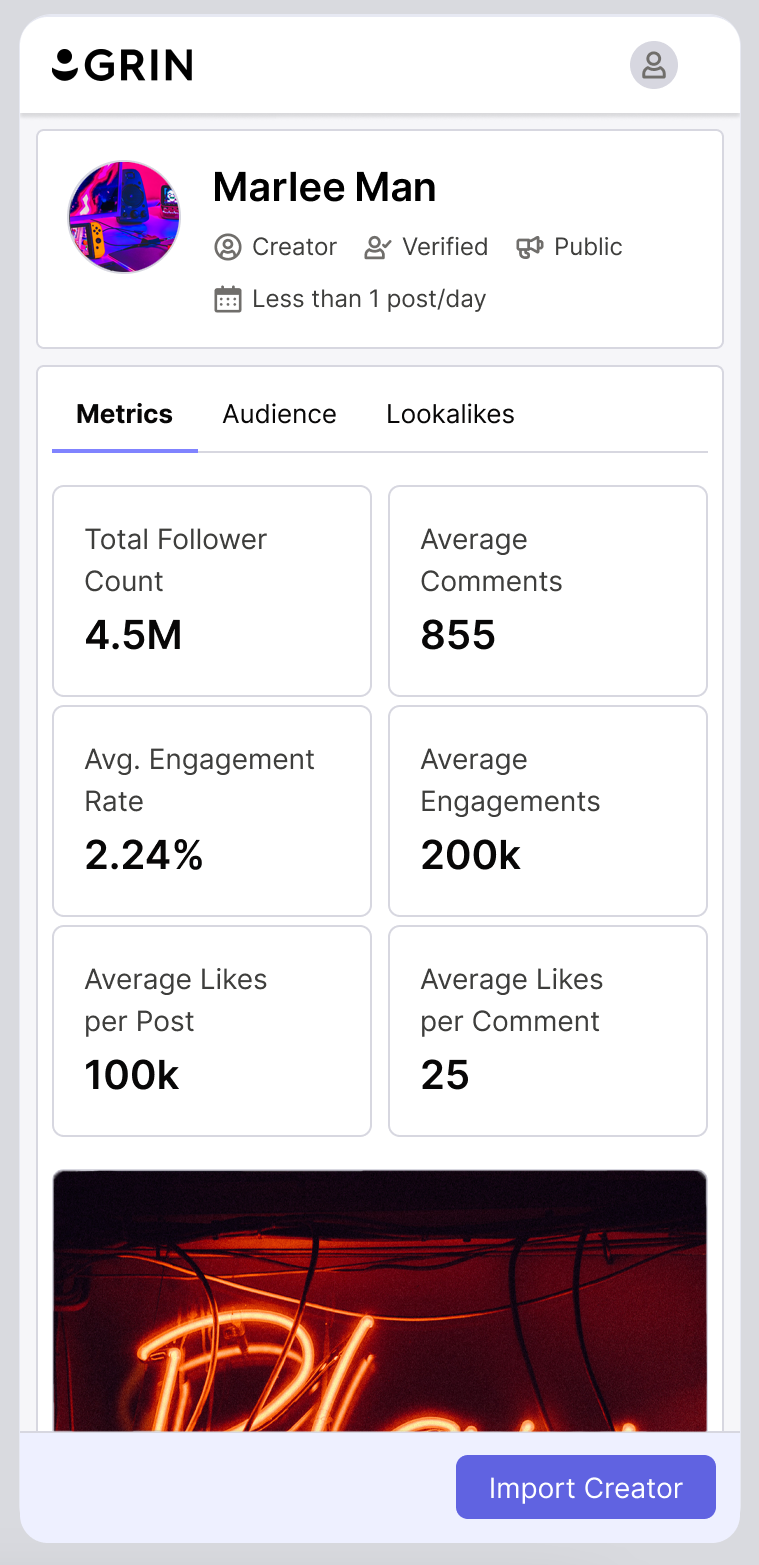
4. Select the GRIN Creator Discovery Web Extension from your browser's extension menu or toolbar. This will open a side panel with the creator's information, statistics, previews of their posts, and engagements on these posts.
Note: The data shown for creators across social networks may differ. For example, the GRIN extension will show statistics for likes and comments on posts on Instagram profiles, but will only show followers and average views on YouTube profiles. This is due to the data each social network has available.
5. Select Import Creator. This will open a form where you can select various settings for the creator before importing them into GRIN. If you don't want to edit any fields, you can skip to Step 7.
6. Complete any of the following fields as needed. You can edit any of these settings later from within GRIN.
Contact Type: Select whether to import the creator as a prospect or creator. Prospects will appear in your Prospects list within GRIN, whereas creators will appear in your Creators list.
First Name: The displayed first name for the creator. The extension will try to populate this field automatically.
Last Name: The displayed last name of the creator. The extension will try to populate this field automatically.
Email Address: The email address to contact the creator. The extension will try to populate this field automatically.
Owner: The assigned owner for the creator. By default, the extension will assign the creator to you.
Relationship Stage: The creator's relationship stage.
Tags: Add any tags to label the creator with. You can use existing GRIN tags or create new ones by typing in a tag and hitting the Enter key. You can learn more with our help article How to Manage Tags.
Add Note: Add any notes or more information to the creator. These notes will appear when inspecting the creator in GRIN.
Activations: Select an Activation to add the creator to immediately.
Custom Properties: Any remaining fields that appear will be any custom properties you've set up in GRIN. You can learn more with our help article Managing Custom Properties.
7. Select Import Creator.
That’s it! The creator should now be added as a contact in GRIN, and you’ll be able to view them in either of your contact lists by clicking Contacts > Prospects or Contacts > Creators depending on the Contact Type you set for the creator. Additionally, the GRIN Creator Discovery Web Extension will now show that you’ve imported that creator, and you can select View Profile to open that creator's profile in GRIN.
How Matching Works (Avoiding Duplicates)
When you import a creator with the extension, GRIN first checks whether that creator already exists in your account, so it does not create a duplicate. GRIN matches on both of the following:
The creator's social handle on the network you're importing from.
The creator's email address.
If either one matches a contact you already have, GRIN treats it as the same person and links to that existing contact instead of creating a new one. In that case the extension shows View Profile instead of Import Creator, since the creator is already in your account.
Because GRIN matches on the social handle as well as the email, a creator you already have under a different or older email will still be recognized, so you won't end up with duplicate records for the same person.