
Adding a New Payment Method
Overview
Payment Methods are the various ways you can deposit funds into GRIN to pay your creators. Currently, GRIN supports the following payment methods:
Credit or Debit Card
ACH
You can configure and save all of these payment methods to your GRIN account if you're using GRIN's updated payment methods. After each method has been verified, you can use your payment methods to deposit funds into your account to pay your creators.
What You'll Need
A Brand Admin role.
Finance Admin permissions. For more information on Finance Admins, see our help article User Roles and Permissions.
Access to your payment account information such as your card or bank account.
How to Do It
1. Navigate to Account > Settings > Creator Funds Deposit and click Deposit Funds.
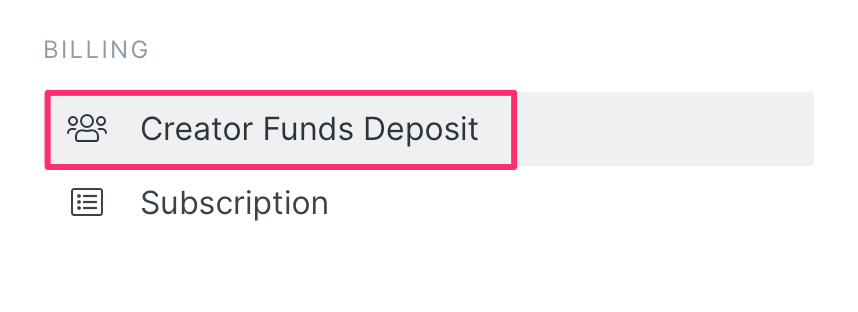
2. Click on Deposit Funds. This will open the payment method modal, where you can click Link an Account or Generate Invoice.
3. Click on which payment method you want to add to your account and follow the prompts. Options are Credit or Debit Card, ACH (Bank Login), or ACH (Account and Routing Number).
Note: For ACH via Account/Routing Number, you'll receive 2 microdeposits within 3 business days that you'll need to verify. You have 3 attempts to enter the correct amounts.
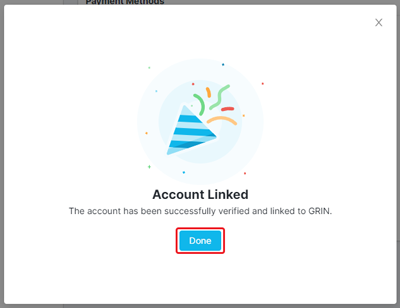
4. Once your payment method is successfully connected, you'll see the Account Linked message. Click the X to close the modal.
Conclusion
Your new payment method should now appear on the Payment Methods page in a list. Your default payment method will also be marked with Default for Creator Payments.
Once your payment method is verified, you're ready to deposit funds into your GRIN account and start paying your creators!