
Providing a Discounted Product to Creators with Creator-Only Discount Codes
Overview
In situations where a brand wants creators to purchase or gift products at a discounted price (rather than receiving them for free), GRIN can support this workflow using creator-only discount codes generated in GRIN with a connected eCommerce store (e.g., Shopify).
Brands commonly use this approach when:
The products are high-value (e.g., $500–$2,000+)
The brand cannot offer free product to all creators
Creators still need to complete tasks and participate in an Activation
The brand wants visibility into the creator’s purchase, even if it’s not a standard FOC (free-of-charge) order
This workflow allows creators to purchase the product at a reduced price using a code intended exclusively for them.
When to Use This Method
Use creator-only discount codes when:
You want creators to pay a portion of the product cost
You want their purchase to be trackable in GRIN
You want to avoid sending proposals or generating FOC orders
You want to keep all creator tasks inside an Activation while letting creators self-purchase
What You’ll Need
An eCommerce store connected to GRIN (e.g., Shopify; examples below use Shopify terminology)
A GRIN Activation for managing the rest of the creator workflow (tasks, tracking, communication)
Step 1: Create a Creator-Only Discount Code Group
Navigate to the Brand the discount code should be associated with, then select Discount Codes.
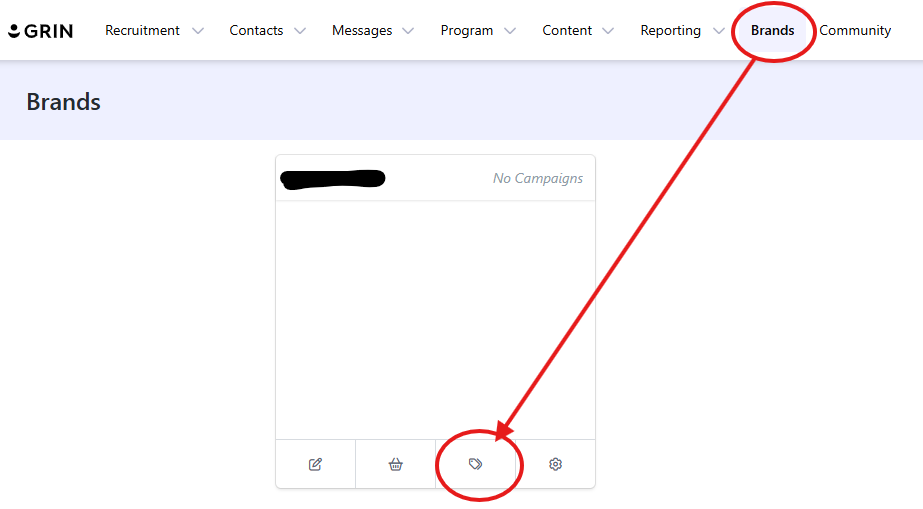
Guidelines for Creator-Only Codes
It's best practice to add an identifying prefix such as INF- or CREATOR-
(e.g., INF-JSMITH-20OFF)Set the discount code:
To a percentage or fixed-amount discount
Select specific products, collections, or entire order
Under "Step 5: Discount Usage Limits" be sure to:
Set "Limit Number of Uses" to Yes
Set "Number of Uses" to 1
Set "Limit to one use per Customer" to Yes
Set "Audience" to Everyone
Set "Start Date" to Today
Then choose whether to expire the code if they don't use it within a specified period.
Under "Step 6: Affiliate Settings" be sure to:
Set "Payout Type" to Percentage
Set "Payout Amount" to 0
Tip
Adding all creator-only codes to the same code group allows you to view all discounted creator purchases in a single place later.
Step 2: Assign and Share the Discount Code with the Creator
Navigate to the Affiliate Hub and search for the creator.
Select the creator and click "Add Code"
Select the new Discount Code from the drop-down list
Click "Assign Code"
Draft and send an email with the code to the creator. Be sure to let them know the code is ONLY for them.
You can share the code with the creator via:
Messaging inside GRIN
Email templates
Activation instructions or task descriptions
Suggested wording:
“Use this exclusive creator-only discount code at checkout to purchase your product. This code is for you only and is valid for one use.”
Creators complete checkout like a normal shopper, using their code.
Step 3: How Orders Appear in GRIN
When creators purchase using their creator-only discount code:
GRIN will track the order if the store is connected.
The order will appear under:
Affiliate Hub (if using affiliate/discount code tracking)
Contact Profile
Discount Code Group
Summary
Offering discounted products to creators is fully manageable through GRIN by using creator-only discount code groups. While these orders won’t flow through the FOC proposal process, they are still visible through discount code tracking and allow creators to participate normally in Activations, complete tasks, and produce content.