
Managing Payables
You can view owed payments for all your creators from the Centralized Payments Dashboard, including owed payments from across all of your active programs in GRIN. This means that you can easily manage all your payments from one place.
How to Do It
You can access the Centralized Payments Dashboard by navigating to Program > Payments. The page that opens is titled Make Payments, and it displays all your owed payments across GRIN.
There is no menu item called Make Payments. If you are looking for it in the menu, look for Program > Payments.
From the Dashboard, there are various tools you can use to manage your creators' payment information.

Filters: Select this button to open various filters you apply to your Dashboard.
Search: Enter a phrase in this field to display results matching that phrase.
Columns: Select this button to add or remove columns to display in your Dashboard.
You can also select the checkbox next to multiple creators to display new bulk actions.
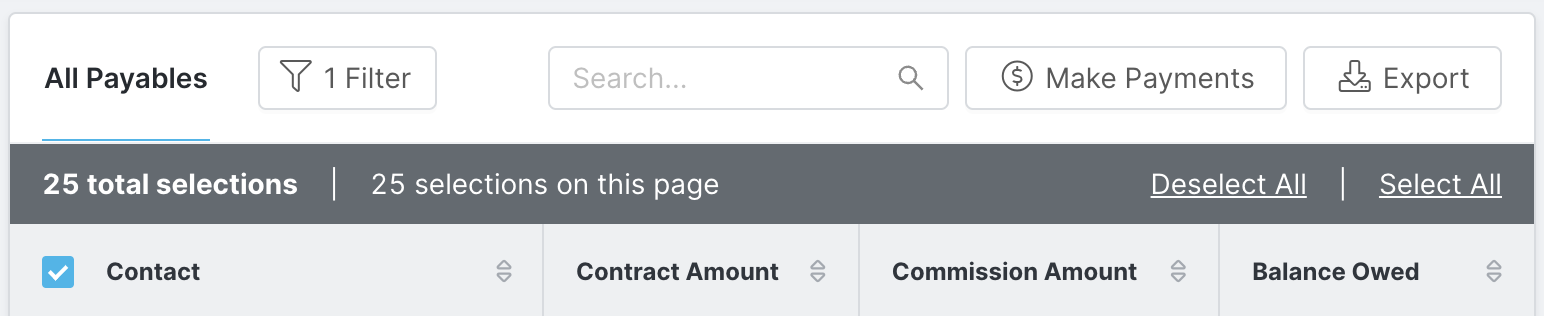
Make Payments: Open the Make Payments modal to pay your selected creators. For more information on paying creators, see our article Making Payments to Creators.
Export: Download a CSV file of your currently selected payables.
To review payments you have already sent, select Payment history in the top right of the Make Payments page. For the full set of paths, see Where to find Payments in GRIN.