
Viewing the Email Dashboard
With the Messages Dashboard, you can get a quick summary of how many emails you've sent over time, confirm if your scheduled emails were sent out, and ensure your creator outreach is proceeding as you expect.
What You'll Need
To use email-related features, you need to integrate your preferred email provider with GRIN. You can learn how with our article Integrating Your Email.
How to Do It
To open it, select Messages in the top navigation and choose Dashboard. The page is titled Email Dashboard.
The Dashboard has two parts:
The Emails Sent Over Time graph.
The Sent Emails table.
You can use each part to learn more about how your creator outreach is going.
Note: The data in the Dashboard is only based on emails sent from your GRIN inbox. If you send emails with the same inbox you integrated with outside of GRIN, those will not be shown in the Dashboard.
Emails Sent Over Time Graph
The Dashboard's Emails Sent Over Time graph displays your email trends over the past four quarters.
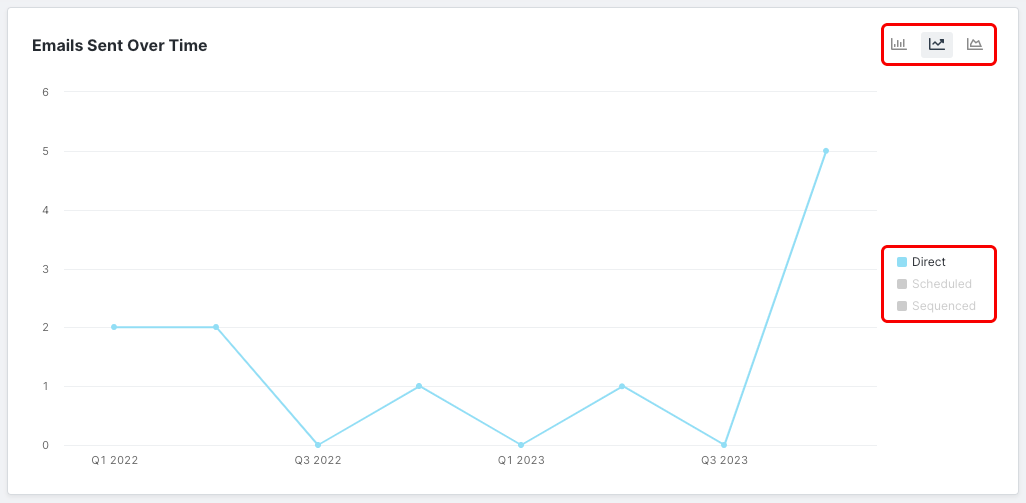
You can toggle different views to see your email trends.
Sent Emails Table
The Dashboard's Sent Emails table gives you a summary of your sent email history. There are six tables you can switch between: Scheduled Emails, Sequence Emails, Recently Sent, Processing, Failed to Send and Delayed Emails.
If an email has not reached the creator, check Processing first, then Delayed Emails, then Failed to Send.
You can hover over each row in a table to view various row actions, including View Message, Send Now, Delete, and Remove from Sequence.
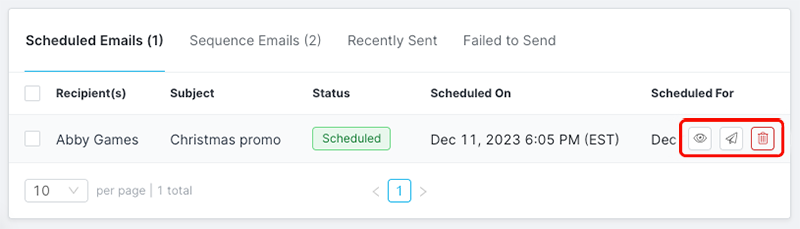
Use row actions to manage individual emails.
The table columns are Recipient(s), Subject, Status, Scheduled On and Scheduled For.