Submitting Creator Payments Through a Partnership
Within GRIN you have the ability to submit creator payments directly through the platform, which are sent to the creator's bank account by Bank Transfer. However, if you would like to send creator payments from outside of the platform we also provide the option to record those offline payments for reporting purposes.
What You'll Need
An active Partnership at least one payable.
Available creator funds.
How to Do It
Check out the sections below to learn how to submit or cancel creator payments, custom payments, and offline payments in a Partnership.
Submit Creator Payments
1. Click on Program > Partnerships.
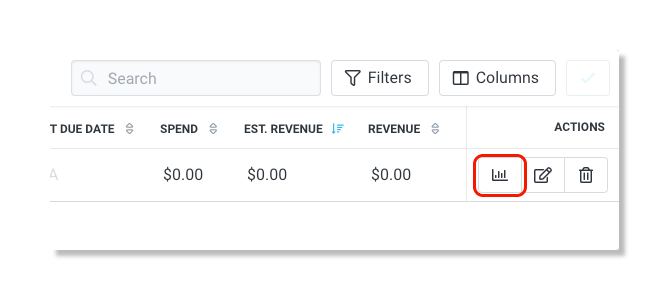
2. Under the Actions column click on the Manage Partnership icon.
3. Scroll down to Payments and click the Make Payment icon for the payment you would like to make.

4. Select Cash Payment and click Send Payment.
Submit Custom Payments
1. Click on Program > Partnerships.
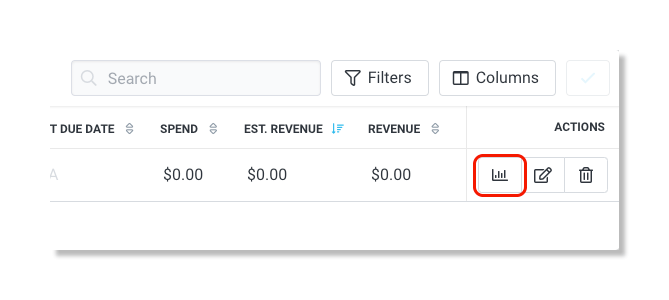
2. Under the Actions column click on the Manage Partnership icon.
3. Scroll down to Payments and click Add Payables.

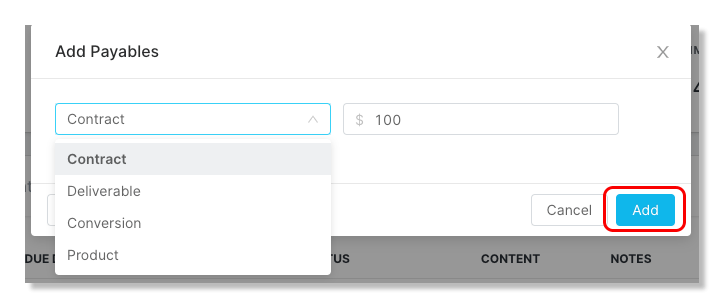
4. Select the Payment Type, enter the Payment Amount, and click Add.
5. To make the payment, click the Make Payment icon.

6. Select Cash Payment or Offline Payment and click Send Payment.
Record Offline Payments
1. Click on Program > Partnerships.
2. Under the Actions column click on the Manage Partnership icon.
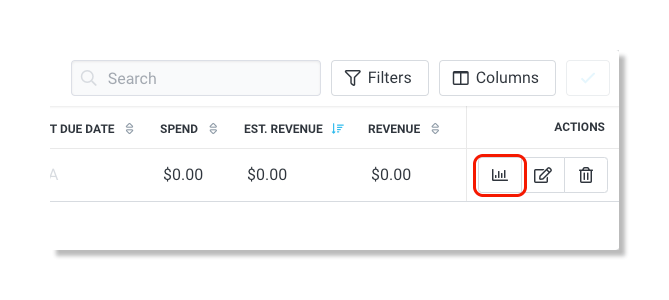
3. Scroll down to Payments and click the Make Payment icon for the payment you would like to process.

4. Select Offline Payment and click Record Payment.
Cancel Pending Payments
Note: Only offline payments or payments whose statuses are still pending can be canceled. Once a payment has been processed, it can no longer be canceled.
1. Click on Program > Partnerships.
2. Under the Actions column click on the Manage Partnership icon.
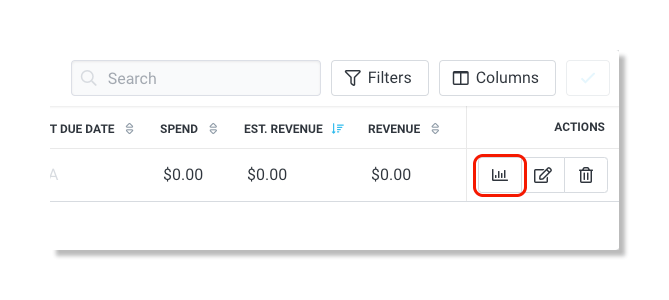
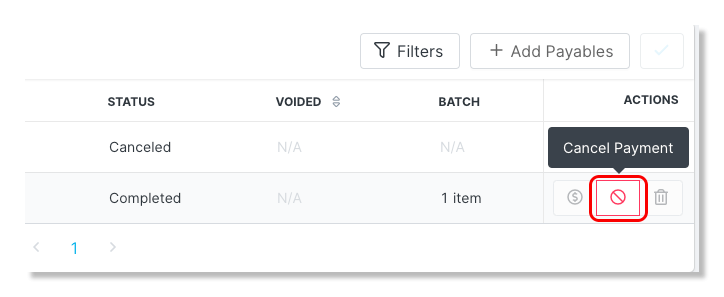
3. Scroll down to Payments and under the Actions column, click the Cancel icon next to the desired payment(s).